An automated wishlist reminder email brings a shopper back to products they deliberately saved but have not yet purchased. With TValue: Wishlist, the first qualifying save starts a configurable delay, additional products saved during that delay are grouped into the same reminder, and the email is sent at the scheduled time.
This is different from sending one message for every click. The delay creates one useful summary of recent wishlist interest instead of a stream of repetitive emails.
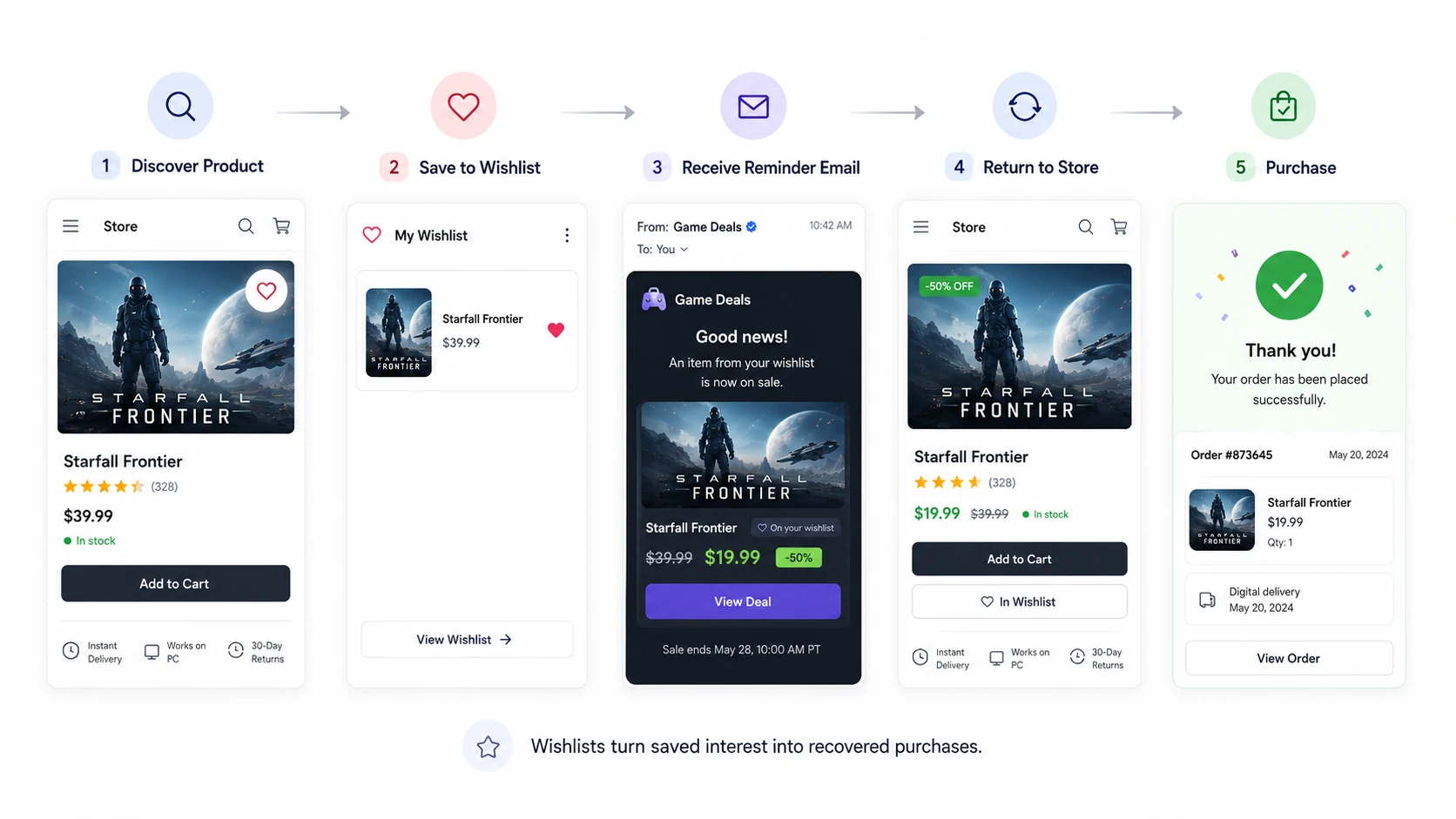
A reminder reconnects an earlier save action with a later opportunity to return to the store.
What is a wishlist reminder email?
A wishlist reminder is an automated message based on an explicit save action. The shopper chose a product strongly enough to keep it, but the product did not necessarily belong in the cart yet.
That makes wishlist reminders different from broader promotional campaigns:
| Email type | Trigger | Message context |
|---|---|---|
| Wishlist reminder | Shopper saves one or more products | "These are the products you wanted to revisit" |
| Abandoned cart email | Shopper starts a cart or checkout journey | "You left products closer to purchase" |
| Price-drop alert | A saved product drops by a configured percentage | "The price changed after you saved this" |
| Back-in-stock alert | A saved product becomes available again | "The product you wanted can be purchased again" |
A store can use more than one flow because each one responds to a different reason for returning.
What needs to be in place before sending
An effective reminder flow needs more than an enabled toggle.
Before setup, confirm that:
- Wishlist buttons and the wishlist page or popup work on the storefront.
- The shopper can be resolved to an eligible email address.
- The email template clearly shows saved products and links back to the store.
- Sender and reply-to details are appropriate for the brand.
- Unsubscribe and notification preferences are respected.
If visitors can save without signing in, use the guest wishlist guide to decide when to ask them to sign in or leave an email.
How TValue groups wishlist items
TValue uses the delay as a consolidation window.
The first qualifying wishlist addition creates the scheduled reminder. If the same shopper saves more products before that reminder is sent, TValue adds those products to the existing batch. The later additions do not create separate reminders and do not restart the original timer.
At send time, TValue checks the captured wishlist items again. A product that the shopper removed is not included. Products that are no longer available to the automation can also be omitted.
Here is a simplified example with a 2-hour delay:
| Time | Shopper activity | Reminder state |
|---|---|---|
| 10:00 | Adds Product A | First reminder is scheduled for 12:00 |
| 10:20 | Removes Product A | Product A will not be included |
| 10:30 | Adds Product B | Product B joins the reminder scheduled for 12:00 |
| 12:00 | No new shopper action | Reminder sends with Product B |
| 12:15 | Adds Product C | A new reminder is scheduled for 14:15 |
| 12:40 | Adds Product D | Product D joins the second reminder |
| 14:15 | No new shopper action | Reminder sends with Products C and D |
This behavior gives the shopper time to build a list while keeping the number of sends controlled.
Choose a reminder delay
There is no universal delay that fits every catalog. Choose it based on how customers shop.
- Shorter delay: useful when product consideration is quick and shoppers commonly finish in one session.
- Longer delay: useful when visitors compare several products, sizes, styles, or higher-consideration purchases.
- Specific send time: useful when you want reminders to arrive at a consistent hour rather than immediately when the raw delay ends.
- Selected weekdays: useful when the store intentionally limits automation sends to particular days.
TValue lets you configure the delay in minutes, hours, or days. You can also delay until a specific time of day and choose the recipient's local timezone, the shop timezone, or another timezone. Selected weekday rules can further constrain when the reminder is delivered.
For stores with customers in multiple regions, choose Recipient's local timezone. A reminder scheduled for 7:00 PM then follows 7:00 PM for each recipient instead of arriving at the same global moment, which could be late at night or early in the morning elsewhere. If a valid recipient timezone is unavailable, TValue falls back to the shop timezone and then UTC.
Treat the first delay as a testable starting point. Review email engagement and adjust it when the data shows that shoppers respond better sooner or later.
Set up wishlist reminder emails in TValue
1. Open the automation
In the app, go to Emails > Automations > Wishlist reminder.
The flow has three nodes:
- Trigger: someone adds a product to their wishlist.
- Time delay: TValue waits and consolidates saved items.
- Send email: the grouped reminder is delivered.
The trigger is fixed, so configuration begins with timing.
2. Configure the delay
Open Time delay and set Wait before sending and consolidate wishlist items for.
Then decide whether to enable:
- Delay until a specific time of day
- A timezone rule for that time
- Delay until specific days of the week
Save the delay settings before moving to the email node.
3. Configure the email envelope
Open Send email and review:
- Subject line
- Preview text
- Sender name
- Reply-to address
- Optional Cc and Bcc addresses
- Email template
The subject should describe the reason for the message without pretending that the product changed when it did not. A reminder can be direct: the saved products are still waiting, the list is ready to revisit, or the shopper can continue where they left off.
4. Build the reminder template
Use the email editor to keep the saved products central to the message. Product image, title, price, and a clear return action should be easy to scan.

The email should make the saved product recognizable and provide a direct route back to it.
You can add a Discount block when an incentive is part of the campaign. The reminder restores product context; the discount can give an undecided shopper an additional reason to act. Do not add a discount by default if it conflicts with margin or promotion strategy.
See Email templates for template library, saved template, and editor behavior.
5. Enable and monitor the automation
After the delay, sender, subject, and template are ready, click Enable.
Use Email history to review each email and its event timeline. Sent, opened, and clicked events help distinguish delivery volume from actual engagement. Email detail also shows the automation, recipient, content, and events associated with a send.
What to measure
Start with a small set of questions:
- Are reminder emails being delivered to the expected contacts?
- Do shoppers open the message?
- Do they click a product or wishlist link?
- Which delay produces useful engagement without sending too early?
- Does adding a discount improve action enough to justify the incentive?
Avoid judging the flow only by the number of emails sent. The objective is to recover useful shopping intent, not maximize automation volume.
Common reminder mistakes
Sending too many separate messages
One email per saved product can quickly become repetitive. Use the consolidation delay so a browsing session becomes one grouped reminder.
Hiding the saved products below generic content
The shopper should recognize why they received the email. Put the relevant wishlist products before unrelated promotions.
Treating every guest as reachable
A guest save does not automatically provide an email address. The shopper must have an eligible contact identity before an email can be delivered.
Enabling the flow before testing the storefront
The email cannot repair a wishlist button, product link, or wishlist page that does not work. Complete the wishlist setup verification checklist first.
What to automate next
Wishlist reminders are based on elapsed time. Product alerts respond to a new reason to return, such as a lower price or restored inventory.
Continue with How Wishlist Price-Drop and Back-in-Stock Alerts Work on Shopify to add event-driven follow-up without turning every saved product into the same message.
If your store manages downstream workflows elsewhere, continue with the integration guide for Klaviyo, Omnisend, or Shopify Flow.