A guest wishlist lets Shopify visitors save products before they create an account or sign in. With TValue: Wishlist, you can leave wishlist access open to guests, ask for contact information after a wishlist interaction, or require login before a product can be saved.
For most direct-to-consumer stores, the least disruptive starting point is to let the shopper save first. You can then offer a clear choice to sign in or leave an email address when you want to connect that wishlist with a reachable contact.
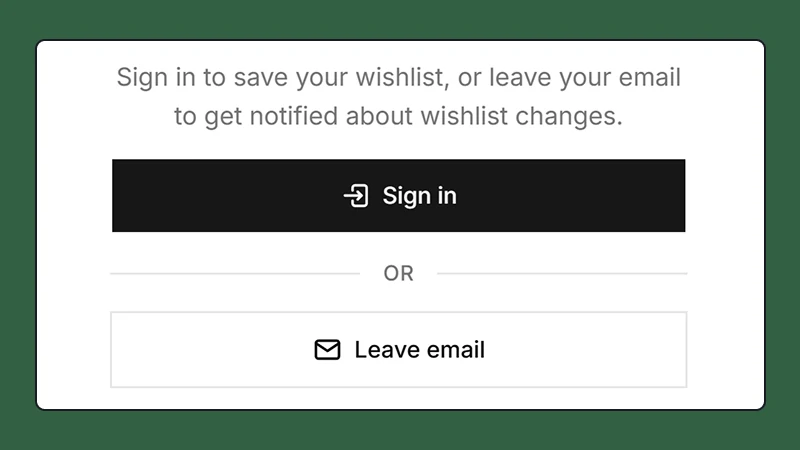
Guest saving and contact capture can be separate steps: save the product first, then ask the shopper how they want to stay connected.
What is a guest wishlist?
A guest wishlist is a saved-products experience that does not require the shopper to authenticate before using the wishlist button.
This matters because a visitor can show interest much earlier than they are ready to create an account or buy. The wishlist gives that visitor a low-commitment action: save the product now and decide what to do next later.
A customer account still has an important role. Shopify customer accounts give shoppers a persistent sign-in experience and access to account features such as profile and order information. But account access and wishlist access do not have to begin at the same moment. Shopify Help Center: Customer accounts
Choose the right wishlist access model
There are three practical ways to handle visitors who are not signed in.
| Access model | Shopper experience | Best suited for |
|---|---|---|
| Allow guest saving | The product is saved immediately without a login prompt | Stores that want the lowest-friction save action |
| Allow saving, then ask for contact | The shopper saves first and can then sign in or leave an email | Stores that want both easy saving and recoverable wishlist intent |
| Require login before saving | The wishlist action opens a sign-in prompt | Member-only, wholesale, B2B, or account-led experiences |
These models are not merely visual choices. They determine where you place friction in the customer journey.
If browsing is open to everyone, requiring an account for the first wishlist action can feel disproportionate. If prices, products, or buying privileges are account-restricted, requiring login may be consistent with the rest of the store. Shopify B2B, for example, relies on signed-in customers to access company-specific products and pricing. Shopify Help Center: B2B customer accounts
Guest saving and email capture are different decisions
It is useful to separate two questions:
- Can this visitor save a product?
- Can the store contact this visitor later?
A guest can use the wishlist without being a reachable email contact. That keeps the first interaction simple, but an automated reminder cannot be delivered until TValue has an eligible email address for that shopper.
TValue provides contact actions inside the main wishlist experience as well as an optional prompt after wishlist activity. A guest can:
- Use Sign in to save your wishlist in the header of the wishlist popup or page. This is the only contact action shown when the guest wishlist is empty.
- After saving at least one item, use the contact area in the wishlist sidebar to Sign in or Leave email. Choosing Leave email reveals the email field and Save action.
- Respond to the optional Save wishlist contact popup shown after wishlist activity.
These contact points preserve the quick guest save action while giving the shopper more than one opportunity to connect the wishlist with an eligible email address. The sidebar form is available only when the guest has at least one wishlist item and the wishlist sidebar is visible; popup mode can hide that sidebar through the Hide sidebar setting.
Set up a guest wishlist with TValue
Before changing guest behavior, complete the standard installation in How to Add a Wishlist to Shopify Without Editing Theme Code.
1. Allow wishlist actions without login
Open Display > Widgets > Require login for wishlist.
Keep Require login for wishlist disabled. A visitor who is not signed in can then use wishlist actions without first seeing the login requirement.
If the setting is enabled, TValue shows a sign-in prompt when the guest tries to add a product.

Use the login requirement intentionally for account-led stores, rather than as the default for every visitor.
See Require login for wishlist for the setting and prompt customization options.
2. Decide whether to show the additional contact popup
Open Display > Widgets > Save wishlist contact popup.
Enable Show login or leave email popup when you want to proactively invite guest shoppers to identify themselves after wishlist activity. TValue can show this prompt after the first saved item and again after later wishlist activity when the guest is still signed out and has not left an email.
Keep it disabled when you do not want the additional prompt interrupting the storefront journey. Disabling it does not remove every contact option: guest shoppers can still use Sign in to save your wishlist in the wishlist header. After the guest saves at least one item, the Sign in / Leave email controls also appear in the wishlist sidebar when that sidebar is visible.
The three contact surfaces serve different moments:
| Contact surface | Where it appears | Purpose |
|---|---|---|
| Sign in to save your wishlist | Wishlist popup or page header, including when the wishlist is empty | Gives an existing customer a direct sign-in path while viewing the wishlist |
| Sign in / Leave email form | Wishlist sidebar after a guest has saved at least one item | Lets a guest choose sign-in or enter an email from the wishlist itself |
| Save wishlist contact popup | After eligible wishlist activity | Proactively presents the same choice without waiting for the guest to find the form |
You can customize the popup title, description, field placeholder, buttons, and success message under Translation.
3. Give shoppers a way back to the wishlist
Saving is only useful if the shopper can find the products again.
Provide at least one visible wishlist entry point:
- A wishlist button in the store header
- A floating wishlist button
- A View wishlist action in the confirmation toast
- A navigation link to a dedicated wishlist page
You can use a popup for a quick overlay or a page for a dedicated URL. The detailed tradeoffs are covered in Shopify Wishlist Page vs Popup: Which Should You Use?.
4. Test the complete guest journey
Use a private or incognito browser window so an existing Shopify login does not affect the test.
Verify that a guest can:
- Open an empty wishlist and see Sign in to save your wishlist without the sidebar email form.
- Add a product from a product page.
- Add a product from the main collection page.
- See the correct additional contact popup behavior.
- Close the prompt without losing the save action.
- Reopen the non-empty wishlist and find Sign in to save your wishlist.
- Use Leave email in the wishlist sidebar when the sidebar is visible.
- Remove an item and add an eligible item to cart.
Then repeat the test as a signed-in customer. The storefront should make sense in both states.
When should you require login?
Requiring login is reasonable when account identity is part of the store experience, not simply because a wishlist exists.
Consider it when:
- The storefront is designed for B2B or approved customers.
- Product access or pricing depends on account identity.
- The wishlist is part of a private member experience.
- Your operational process requires every saved list to belong to an authenticated customer.
For a public consumer storefront, start by testing guest access. You can still invite the shopper to identify themselves after they have received value from the save action.
Connect guest intent with reminder emails
Once a shopper has provided an eligible email address, the wishlist can become more than a passive list.
TValue can use saved-product intent for:
- Wishlist reminder emails
- Price-drop alerts
- Back-in-stock alerts
- Low-stock alerts
These emails should follow the shopper's notification eligibility and unsubscribe preferences. Guest access itself does not mean every guest can automatically receive email.
Continue with How to Send Automated Wishlist Reminder Emails on Shopify when your guest and signed-in wishlist journeys are working correctly.
Guest wishlist checklist
Before launch, confirm:
- Guests can save without an unexpected sign-in barrier.
- The additional contact popup appears only when you intend it to.
- The wishlist header provides the guest sign-in action even when the wishlist is empty.
- The sidebar sign-in and email form appear after a guest saves at least one item and work when the sidebar is visible.
- Closing the popup does not make the wishlist journey confusing.
- Shoppers have a visible way to reopen the wishlist.
- Guest and signed-in behavior have both been tested.
- Email automation is sent only to eligible, reachable contacts.
- Wishlist text is translated for the storefront locales you support.
The best guest wishlist is not the one that collects the most information at the first click. It is the one that lets shoppers save with confidence and gives them a clear next step when they are ready.