To send Shopify wishlist activity to Klaviyo, connect TValue: Wishlist with a Klaviyo Private API Key, enable the events you need, and send a test event. Each event appears in Klaviyo as a TVAW: metric that can trigger a flow and provide customer and saved-product data to its messages.
The integration does not create or activate a Klaviyo flow. TValue decides when an enabled wishlist event is ready and sends its data; Klaviyo controls the flow filters, timing, channels, and messages that follow.
What TValue sends to Klaviyo
The integration provides six metrics. Each represents a different shopper action or product change, so it should have a distinct role in Klaviyo.
| TValue event | Metric in Klaviyo | When it is sent |
|---|---|---|
| Wishlist Item Added | TVAW: Wishlist Item Added | A reachable shopper adds a product to their wishlist. |
| Wishlist Item Removed | TVAW: Wishlist Item Removed | A reachable shopper removes a product from their wishlist. |
| Wishlist Reminder | TVAW: Wishlist Reminder | The configured delay ends and eligible saved items are consolidated into one event. |
| Wishlist Item Price Drop | TVAW: Wishlist Item Price Drop | A saved product reaches the configured price-drop threshold. |
| Wishlist Item Back In Stock | TVAW: Wishlist Item Back In Stock | A saved product becomes available again. |
| Wishlist Item Low Stock | TVAW: Wishlist Item Low Stock | A saved product reaches or falls below the configured inventory threshold. |
TValue can associate events with logged-in customers and with guests who have submitted an email address. An anonymous guest who has not provided an email cannot be connected to a Klaviyo profile.
The event data varies by metric, but can include:
- Customer email, name, and phone when available
- Product title, image, URL, ID, and handle
- Selected variant and variant-specific product URL
- Product price and formatted price
- The time an item was added to the wishlist
- A consolidated array of saved products for Wishlist Reminder
- Previous and current prices for Price Drop
- Inventory changes and the selected threshold for stock events
This data can be used in Klaviyo trigger filters, conditional logic, and dynamic email content.
Built-in automation or Klaviyo?
TValue provides built-in email automations as well as Klaviyo integration. Choose where you want each customer message to be managed.
| Use built-in TValue automations when | Use Klaviyo when |
|---|---|
| You want the shortest setup path inside the wishlist app | Klaviyo already manages your store's marketing flows |
| You want to use TValue email templates, Smart Translation, discounts, and Email history | You want to combine wishlist events with Klaviyo profile data, filters, splits, email, or SMS |
| You prefer one place for event timing and email delivery | You need a broader Klaviyo sequence after a wishlist event |
Avoid enabling two equivalent customer messages by accident. For example, if the built-in Price drop alert and a Klaviyo flow both send an email for the same price change, the shopper may receive duplicate notifications.
Connect TValue to Klaviyo
1. Create a Klaviyo Private API Key
In Klaviyo:
- Open Settings > API keys.
- Click Create Private API Key.
- Give the key a recognizable name, such as
TValue Wishlist. - Choose Full Access Key, or use custom access and grant at least read/write access to Events.
- Create the key and copy it.
Klaviyo only displays a newly created private key once, so store it securely while completing the connection. See Klaviyo's current instructions for creating a Private API Key.
2. Connect the integration
In TValue: Wishlist:
- Go to Integrations > Klaviyo.
- Turn on Enable integration.
- Paste the key into Private API key and click Connect.
- Confirm that the connection status changes to Connected.
- Save the integration settings.
The key is used to send events from this store to the connected Klaviyo account. If the key is revoked or becomes invalid, the integration shows a connection error and must be reconnected with a valid key.
Choose and configure the events
Use Event settings to enable only the metrics you plan to use. The integration has one global switch and a separate switch for each event.
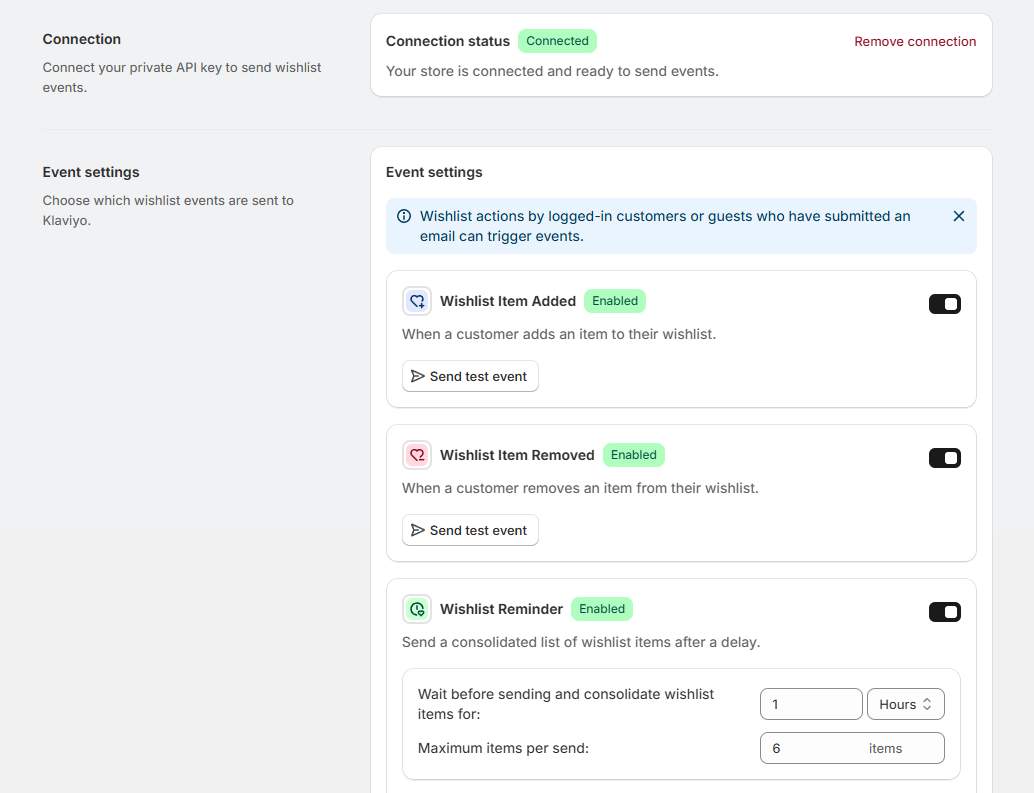
After connecting Klaviyo, each wishlist event can be enabled and tested independently.
Three events also have their own delivery settings:
| Event | Setting in TValue | Effect |
|---|---|---|
| Wishlist Reminder | Delay and maximum items per send | Waits after the first qualifying save, groups later saves during that period, and limits the number of products in the event. |
| Wishlist Item Price Drop | Price-drop percentage | Sends when the detected reduction meets or exceeds the selected percentage. |
| Wishlist Item Low Stock | Inventory quantity | Sends when stock reaches or falls below the selected quantity. |
Select the currency used to format product prices in the event data. This matters when the Klaviyo email displays prices from TValue's event properties.
Wishlist Reminder timing deserves particular attention. Its delay runs in TValue before the consolidated metric is sent to Klaviyo. Any time delay added to the Klaviyo flow begins after that, so the two delays are cumulative.
For example, a 6-hour reminder delay in TValue followed by a 2-hour Klaviyo flow delay produces an effective wait of about 8 hours. Use the Klaviyo delay only when the additional wait is intentional.
For a detailed explanation of consolidation, see How to Send Automated Wishlist Reminder Emails on Shopify.
Send a test event
Test one event before building its production flow.
- In Event settings, click Send test event for the event you want to use.
- Select a customer and the product data requested by the test form.
- Review Event data preview.
- Send the event.
- Open Klaviyo and find the corresponding
TVAW:metric. - Confirm that the profile and expected event properties arrived.
The test uses customer and product data from your store and follows the same property structure as a real event. This gives Klaviyo usable preview data before the flow receives live wishlist activity.
Keep the Klaviyo message in draft or manual mode while testing. A test event is sent to Klaviyo as an actual metric and can enter a live metric-triggered flow if its filters allow it.
Build a metric-triggered flow in Klaviyo
After Klaviyo has received the metric:
- Create a new flow in Klaviyo.
- Choose Metric as the flow trigger.
- Select the relevant
TVAW:metric. - Add trigger filters or flow filters only when they serve a clear targeting rule.
- Add the email or SMS messages for that event.
- Preview the message with the test event data.
- Keep the flow in draft or manual mode until the content and timing have been verified.
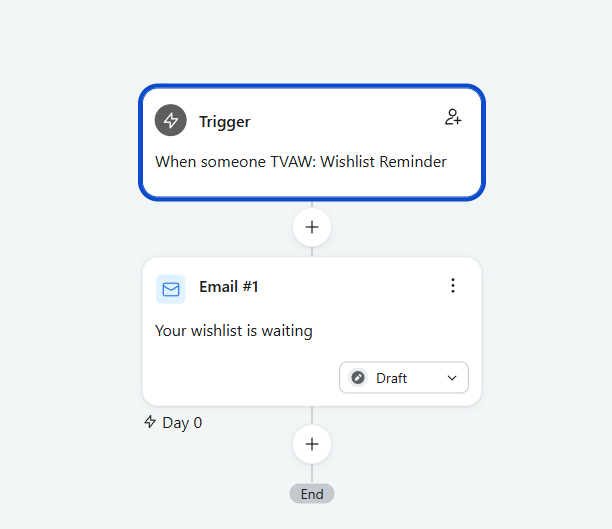
A Klaviyo flow using the TValue Wishlist Reminder metric as its trigger.
Klaviyo explains that a metric-triggered flow can run every time a profile performs the corresponding action unless its filters or re-entry rules limit qualification. Review Klaviyo's metric-triggered flow documentation before activating the flow.
Use one primary intent per flow:
- Wishlist Item Added can begin an immediate workflow based on a new save.
- Wishlist Reminder is better when TValue should first group several recent saves into one event.
- Price Drop, Back In Stock, and Low Stock should explain the specific product change.
- Wishlist Item Removed can update your downstream logic, but should not automatically be treated as a reason to send a promotional email.
Add wishlist products to the Klaviyo email
TValue includes prebuilt product blocks for:
- Wishlist reminder and Wishlist Item Added
- Price drop
- Back in stock
- Low stock
To use one:
- Open Integrations > Klaviyo > Email templates in TValue.
- Choose the product block that matches the flow event.
- Click Preview and edit to adjust its visual settings.
- Copy the generated HTML.
- Open the corresponding flow email in Klaviyo.
- Add an HTML block and paste the copied code.
- Preview the email using the matching
TVAW:event data.
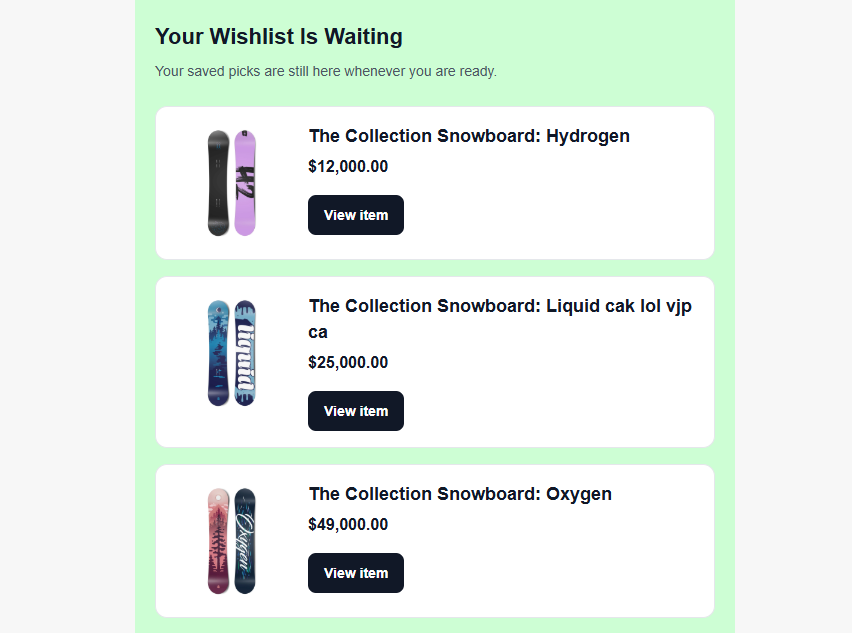
A Wishlist Reminder product block populated with saved products from the triggering event.
The copied code is a dynamic product block, not a complete Klaviyo flow. Its variables are populated from the event that triggered the message, so use the block with its supported metric and test it inside that flow before publishing.
Klaviyo supports custom code through an HTML block and supports arrays of event variables for repeated product data. See Klaviyo's guides to the email template editor and event-data personalization.
Review Event logs in TValue
Open Integrations > Klaviyo > Event logs to check what TValue attempted to send. Logs can be filtered by event, status, and date range.
Open a log to review:
- Whether the event is pending, sent, skipped, or failed
- The customer profile associated with it
- Product or consolidated wishlist data
- The event properties payload
- The failure or skip reason when available
The two platforms answer different questions:
- TValue Event logs: Did the app prepare and send the expected event data?
- Klaviyo flow activity: Did Klaviyo accept the profile into the flow, and what happened to its messages afterward?
Check TValue first when the metric or product data is missing. Check Klaviyo flow activity when the metric arrived but the profile did not receive the expected message.
Launch checklist
Before setting a Klaviyo flow live, confirm that:
- The integration and the required event are enabled.
- The Private API Key connection shows Connected.
- A test event appears under the correct
TVAW:metric. - Product, variant, price, and URL data render correctly in the email.
- Reminder and Klaviyo delays do not create an unintended combined wait.
- The same event is not sending duplicate emails from TValue and Klaviyo.
- Klaviyo consent, sending, and re-entry rules match the store's messaging policy.
- TValue Event logs and Klaviyo flow activity can both be checked after launch.
For the complete setting reference and troubleshooting details, see the TValue Klaviyo documentation. To use wishlist events in another workflow system, continue with How to Send Shopify Wishlist Events to Omnisend or How to Use Wishlist Events in Shopify Flow.