To send Shopify wishlist activity to Omnisend, connect TValue: Wishlist with an Omnisend API key, enable the events you need, and send a test event. TValue creates identifiable TVAW: custom events that can trigger Omnisend automation workflows and provide saved-product data to their messages.
TValue determines when an enabled event is ready and sends its contact and wishlist data. Omnisend controls the workflow filters, delays, channels, and messages that run after the custom event arrives.
What TValue sends to Omnisend
The integration provides six custom events:
| TValue event | Custom event in Omnisend | When it is sent |
|---|---|---|
| Wishlist Item Added | TVAW: Wishlist Item Added | An identifiable shopper adds a product to their wishlist. |
| Wishlist Item Removed | TVAW: Wishlist Item Removed | An identifiable shopper removes a product from their wishlist. |
| Wishlist Reminder | TVAW: Wishlist Reminder | The configured delay ends and eligible saved items are consolidated into one event. |
| Wishlist Item Price Drop | TVAW: Wishlist Item Price Drop | A saved product reaches the configured price-drop threshold. |
| Wishlist Item Back In Stock | TVAW: Wishlist Item Back In Stock | A saved product becomes available again. |
| Wishlist Item Low Stock | TVAW: Wishlist Item Low Stock | A saved product reaches or falls below the configured inventory threshold. |
Omnisend custom events require an identified contact. TValue can send them for logged-in customers and guests who have submitted an email address. A guest who has not provided an email cannot be associated with an Omnisend contact for these events.
Depending on the event, its properties can include customer identity, product and variant details, storefront URLs, images, formatted prices, added time, price changes, inventory changes, or an array of consolidated wishlist products.
Built-in automation or Omnisend?
TValue's built-in email automations and Omnisend workflows are separate delivery paths.
| Use built-in TValue automations when | Use Omnisend when |
|---|---|
| You want to configure and monitor the complete email flow inside the wishlist app | Omnisend already manages your store's marketing automations |
| You want TValue templates, Smart Translation, discount blocks, and Email history | You want to combine wishlist events with Omnisend audience filters and multichannel workflows |
| You prefer one system to control both event timing and email delivery | You need a longer sequence of Omnisend messages after the wishlist event |
Avoid sending the same customer notification through both paths unless the overlap is intentional. An enabled TValue price-drop email and an active Omnisend price-drop workflow can otherwise respond to the same product change with two messages.
Connect TValue to Omnisend
1. Create an Omnisend API key
In Omnisend:
- Open Store Settings > API keys.
- Click Create API key.
- Enter a recognizable name, such as
TValue Wishlist. - Select Events permission.
- Create the key and copy it.
Omnisend does not display the key again after the creation screen is closed. See Omnisend's current instructions for generating an API key.
2. Connect the integration
In TValue: Wishlist:
- Go to Integrations > Omnisend.
- Turn on Enable integration.
- Paste the key into API key and click Connect.
- Confirm that the connection status changes to Connected.
- Save the integration settings.
If the key is deleted or revoked in Omnisend, TValue can no longer submit events. Create a new key with Events permission and reconnect the store.
Choose and configure events
Use Event settings to enable only the custom events you intend to use in Omnisend. Three events also require a delivery rule in TValue:
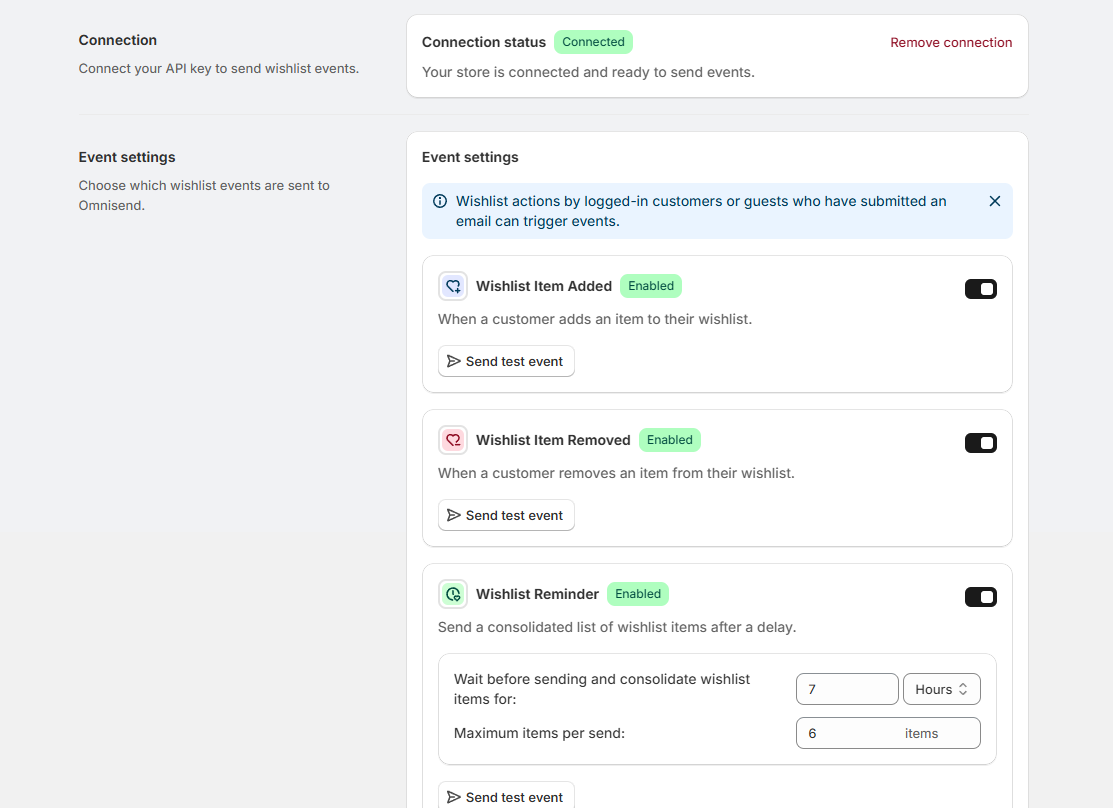
After connecting Omnisend, each wishlist event can be enabled, configured, and tested independently.
| Event | Setting | What it controls |
|---|---|---|
| Wishlist Reminder | Delay and maximum items per send | How long TValue collects recent saves and how many products are included in the consolidated event. |
| Wishlist Item Price Drop | Price-drop percentage | The minimum detected reduction required before the event is sent. |
| Wishlist Item Low Stock | Inventory quantity | The quantity at or below which the event is sent. |
Select the currency code used to format prices in event properties. This ensures that product blocks and personalized fields use the intended display currency.
The Wishlist Reminder delay runs in TValue before Omnisend receives the event. If the Omnisend workflow adds another delay, the two waits are cumulative. For example, a 6-hour TValue reminder delay followed by a 2-hour Omnisend delay creates an effective wait of about 8 hours.
Read How to Send Automated Wishlist Reminder Emails on Shopify for the complete consolidation behavior.
Send the first custom event
Omnisend only shows a custom event in its automation trigger list after that event has been received at least once. Send a test event from TValue before creating the workflow:
- Find the event under Event settings.
- Click Send test event.
- Select the customer and product data requested by the form.
- Review Event data preview.
- Send the event.
- In Omnisend, confirm that the matching
TVAW:custom event now exists.
The test uses controlled data from your store and follows the same property structure as a real event. It also gives Omnisend sample properties that can be selected when configuring workflow conditions and content.
Omnisend documents how API custom events become workflow triggers and provide fields for personalization in Create and Manage Custom Events.
Build the Omnisend automation
After Omnisend has received the custom event:
- Go to Automations and create a workflow from scratch.
- Choose the corresponding
TVAW:custom event as the trigger. - Add trigger filters when the workflow should respond only to particular event properties.
- Add audience filters or splits when the next step depends on contact data.
- Add the email, SMS, or push notification steps required by the workflow.
- Preview the event fields and test the message before enabling the workflow.
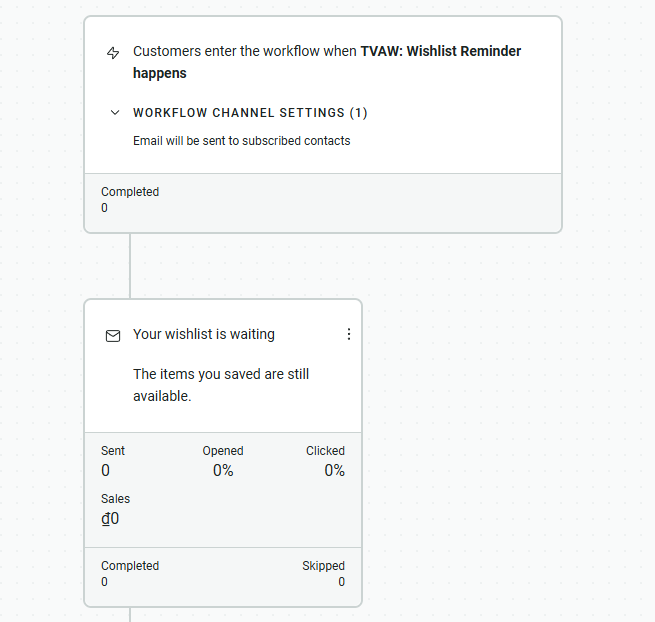
An Omnisend workflow using the TValue Wishlist Reminder custom event as its trigger.
Keep each workflow tied to the meaning of its trigger:
- Wishlist Item Added is an immediate save event and can use an Omnisend delay when follow-up should happen later.
- Wishlist Reminder already waits and groups saved products in TValue before it reaches Omnisend.
- Price Drop, Back In Stock, and Low Stock should explain the product change that triggered the workflow.
- Wishlist Item Removed is useful for downstream logic, but removal alone is not necessarily a reason to send a promotional message.
Omnisend event data is available inside the workflow triggered by that event. It can be used in trigger filters, splits, and personalized message content. See Omnisend's event-data guide.
Add wishlist products to an Omnisend email
TValue includes editable product blocks for:
- Wishlist reminder and Wishlist Item Added
- Price drop
- Back in stock
- Low stock
To add one to an automation email:
- Open Integrations > Omnisend > Email templates in TValue.
- Select the block that matches the custom event.
- Click Preview and edit and adjust its visual settings.
- Copy the generated HTML.
- Open the matching automation email in Omnisend.
- Drag a Custom HTML block into the Email Builder.
- Paste the generated code and save the block.
- Preview the email with data from the corresponding event.
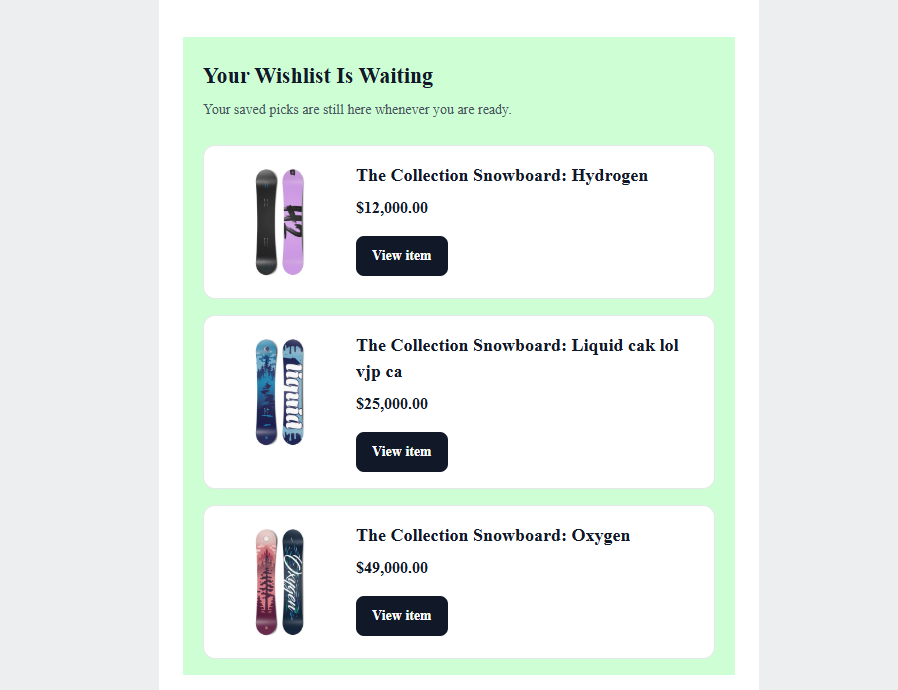
A Wishlist Reminder product block populated with saved products from the triggering Omnisend event.
The generated code is a product block, not a complete Omnisend workflow or email. Its variables depend on the event properties supplied by TValue, so use it with its supported custom event and test the rendered products before enabling the automation.
Omnisend's Custom HTML block accepts body content inside an email and should be tested across the inboxes that matter to the store. See Add and Configure a Custom HTML Item.
Review Event logs
Open Integrations > Omnisend > Event logs to review real and test events. Filter the list by event, status, or date range.
Each log can show:
- Whether the event is pending, sent, skipped, or failed
- The contact associated with the event
- Product or consolidated wishlist data
- The complete event properties payload
- The failure or skip reason when available
Use the two systems together:
- TValue Event logs confirm what the app attempted to submit.
- Omnisend automation activity shows whether the contact entered the workflow and what happened afterward.
If no custom event arrives, start with the connection, event switch, contact identity, and TValue log. If the event arrives but the message does not send, inspect the Omnisend trigger, filters, channel eligibility, and workflow status.
Launch checklist
Before enabling the Omnisend workflow, confirm that:
- The integration is enabled and the API key shows Connected.
- The required event is enabled in TValue.
- A test event appears under the correct
TVAW:custom event. - Product, variant, price, image, and URL properties render correctly.
- TValue and Omnisend delays do not create an unintended combined wait.
- The same event is not sending duplicate emails through two systems.
- Omnisend audience, consent, frequency, and channel settings match the store's messaging policy.
- Both TValue Event logs and Omnisend automation activity can be checked after launch.
For the full setting reference, see the TValue Omnisend documentation. To use the same wishlist activity in Shopify's workflow builder instead, continue with How to Use Wishlist Events in Shopify Flow.