A wishlist popup lets shoppers review saved products without leaving the current storefront page. A wishlist page navigates shoppers to a full-page wishlist with its own URL and more room for browsing.
With TValue: Wishlist, the selected Type controls what happens when a shopper opens the wishlist. The same header button, floating button, or other wishlist entry point can open either the popup or the page. You can switch between both formats without rebuilding those entry points.
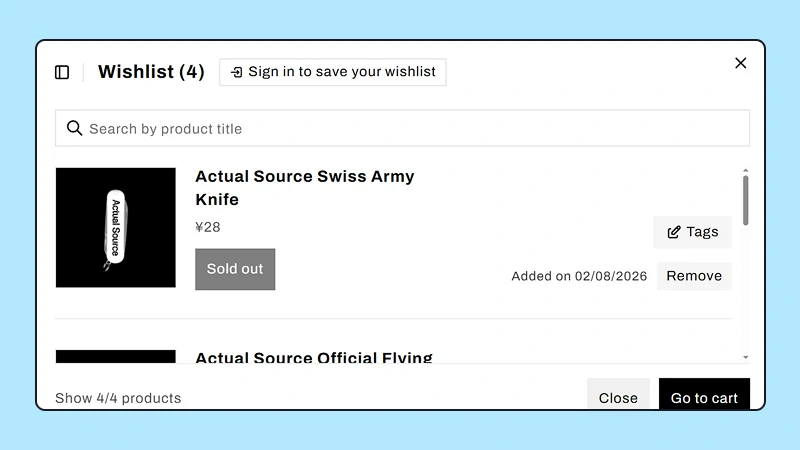
Popup mode keeps the saved list available as an overlay while the shopper remains on the current page.
Wishlist page vs popup at a glance
| Consideration | Wishlist popup | Wishlist page |
|---|---|---|
| When an entry point is clicked | Opens over the current page | Navigates to the wishlist page |
| Shopping context | Keeps the underlying page in place | Makes the wishlist the main page |
| Available space | Constrained by overlay and viewport | Better suited to longer lists and page-level layouts |
| Direct URL | Not needed for normal popup entry points | Available for optional links from navigation, email, or other content |
| Fast review | Strong for checking a few saved products | Strong for browsing and managing a larger list |
| Setup in TValue | Select Popup; optionally hide the sidebar | Select Page; use the default page or an existing Shopify page |
The choice changes the result of opening the wishlist, not which storefront controls can open it. Header buttons, floating buttons, and other supported entry points follow the selected type.
When a wishlist popup works best
Choose popup mode when the wishlist is primarily a quick utility inside the current shopping session.
It is a good fit when:
- Shoppers usually save only a few products at a time.
- Comparing the wishlist with the current product or collection page is useful.
- You want a header button, floating button, or another entry point to reveal the wishlist without navigating away.
- The list and its actions fit comfortably inside an overlay on desktop and mobile.
Popup mode can reduce unnecessary page transitions, but it still needs clear controls. The shopper should be able to close it, search or scan saved products, remove items, choose variants when needed, and move eligible products to cart.
TValue also provides Hide sidebar for popup mode. Use it when the sidebar does not add enough value for the available width and a simpler overlay is easier to scan.
When a dedicated wishlist page works best
Choose page mode when the wishlist benefits from a full-page browsing context.
It is a good fit when:
- Shoppers may build longer wishlists.
- The theme layout gives a full page more usable room than an overlay.
- Wishlist management is important enough to deserve its own browsing context.
- You want the option to link directly to the wishlist from email, navigation, or other store content.
A shopper does not need a navigation-menu link to use page mode. When Type is set to Page, existing wishlist entry points such as the header button and floating button navigate to the wishlist page automatically.
The dedicated URL is an additional option. You can place it in Shopify navigation, an email, or other store content when that return path is useful, but this is entirely up to the merchant. Shopify Help Center: Online store pages
Default page or existing Shopify page?
When Type is set to Page, TValue provides two page options.
Default page
The default option uses TValue's built-in wishlist page and provides a wishlist URL for the store.
Choose Default page to use the built-in wishlist page provided by TValue. You do not need to create or select a Shopify page.
Select existing page
This option renders the wishlist through a Shopify page selected from the store.
Choose it when you want the wishlist to use a Shopify page and page handle that you manage. From the TValue setting, you can select an existing page or enter a title and create a new page for the wishlist.
After selecting or creating a page, verify the public URL and confirm that the wishlist content appears in the theme you plan to publish.
How the selected type controls entry points
Storefront entry points are not limited to one wishlist type. They follow the Type selected in Display > Widgets > Wishlist page:
- With Popup, clicking an entry point opens the wishlist overlay.
- With Page, clicking the same entry point navigates to the wishlist page.
This applies to supported entry points such as the wishlist header button, floating button, and View wishlist actions. The merchant can therefore choose popup or page mode independently of where those controls appear.
A direct navigation-menu link is different because it points to a URL. It is available for page mode, but adding it to the store navigation is optional and does not replace the header button, floating button, or other entry points.
Set up popup mode in TValue
- Open Display > Widgets > Wishlist page.
- Set Type to Popup.
- Decide whether to enable Hide sidebar.
- Set the primary color, text color, and primary button text color.
- Decide whether Remove item after adding to cart matches the store's workflow.
- Save and test the popup from every active wishlist entry point.
On mobile, test more than whether the overlay opens. Confirm that long product names, variant actions, the close control, footer actions, and the on-screen keyboard do not block important content.
Set up page mode in TValue
- Open Display > Widgets > Wishlist page.
- Set Type to Page.
- Choose Default page or Select existing page.
- If using a Shopify page, select one or create it from the setting.
- Apply the wishlist colors and cart-removal preference.
- Test the header button, floating button, and every other active entry point to confirm that each one navigates to the page.
- Open the public URL directly and test it as both a guest and a signed-in shopper.
- Optionally add the URL to store navigation, email, or other content when you want another direct route to the wishlist.
See Wishlist page and popup for the exact setting reference.
Keep or remove an item after adding to cart?
Both formats include the Remove item after adding to cart setting.
Enable it when adding to cart means the shopper has finished using the wishlist for that product. Leave it disabled when the list should continue acting as a reference, even after the product is placed in the cart.
This choice is independent of popup or page mode. Test it based on how customers use saved products, not on the size of the interface.
How guest access affects the choice
Guest shoppers can use either format when login is not required.
Popup mode can keep the entire guest interaction in one browsing context. Page mode gives the guest a clearer destination to revisit. In both cases, decide separately whether TValue should show the Save wishlist contact popup after wishlist activity.
Read How to Add a Guest Wishlist to Shopify Without Login before enabling a login barrier simply to support page mode.
Questions to answer before choosing
Use these questions during review:
- How many products do shoppers commonly save?
- Do shoppers need to compare the list with the page underneath it?
- Do you need the option to link directly to the wishlist from email, navigation, or other content?
- Does the popup remain comfortable on the smallest supported mobile viewport?
- Does the page inherit the intended theme layout and spacing?
- Can guests and signed-in customers both return to their saved products as expected?
- Should adding to cart remove the item from the list?
If most answers concern quick in-session access, start with popup mode. If they concern return visits, direct links, or longer list management, start with page mode.
Test before launch
Whichever format you choose, verify:
- Header, floating, toast, and other wishlist entry points follow the selected type.
- Any optional direct link to the wishlist page opens the correct URL.
- Saved products, prices, variants, and stock states render correctly.
- Search and list controls remain usable with several items.
- Remove and add-to-cart actions behave as configured.
- Guest and signed-in access match the store's policy.
- Desktop and mobile layouts have no blocked controls or overlapping text.
- Reminder email links return to a useful storefront destination.
You can change the format later, but the shopper should always have one consistent and visible route back to saved products.