TValue: Wishlist adds six wishlist triggers to Shopify Flow. After enabling the integration and the events you need, you can start workflows from wishlist additions, removals, reminders, price drops, back-in-stock changes, and low-stock changes without connecting an external API key.
TValue sends the trigger and its wishlist data. Shopify Flow then evaluates the conditions and performs the actions defined by the merchant, such as updating customer data, notifying a team, or passing information to another Flow-compatible app.
What Shopify Flow does with wishlist events
A Flow workflow has one trigger followed by any conditions and actions needed for that use case:
| Component | Role in a TValue workflow |
|---|---|
| Trigger | A wishlist action or product change sent by TValue starts the workflow. |
| Condition | Flow evaluates customer, product, variant, price, inventory, or test-event data. |
| Action | Shopify or a compatible app performs the task selected by the merchant. |
Shopify documents this trigger-condition-action model in Creating workflows in Shopify Flow.
Unlike Klaviyo and Omnisend, Flow does not automatically represent an email-marketing destination. It is a general workflow layer. The action might tag a customer, send an internal notification, add data to another service, or invoke an action supplied by a Flow-compatible app.
Available TValue triggers
Enable any of these app triggers in TValue:
| Shopify Flow trigger | When TValue sends it | Main data available |
|---|---|---|
| Wishlist Item Added | A logged-in customer adds a product to their wishlist. | Customer and product references, saved product and variant details, price, URL, image, and added time. |
| Wishlist Item Removed | A logged-in customer removes a product from their wishlist. | Customer and product references plus product and variant details at removal time. |
| Wishlist Reminder | The configured delay ends and eligible saved items are consolidated. | Customer reference and a list of wishlist products. |
| Wishlist Item Price Drop | A saved product reaches the configured price-drop percentage. | Customer and product references, previous price, new price, and product details. |
| Wishlist Item Back In Stock | A saved product becomes available again. | Customer and product references, current inventory, price, and product details. |
| Wishlist Item Low Stock | A saved product reaches or falls below the configured quantity. | Customer and product references, previous and current inventory, threshold, price, and product details. |
Shopify Flow events require a Shopify customer reference. For this reason, only wishlist activity associated with logged-in customers can trigger this integration. Guest wishlist activity does not trigger Shopify Flow, even when the guest has left an email address.
When to use Shopify Flow
Shopify Flow is most useful when wishlist activity should affect a process beyond a single email.
Examples include:
- Add a customer tag after a logged-in shopper saves a product.
- Notify a merchandising team when a wishlisted product reaches a meaningful inventory state.
- Branch based on a product, variant, price, or inventory value supplied by the trigger.
- Record wishlist activity through a Flow connector such as Google Sheets.
- Pass the event to another installed app that provides a compatible Flow action.
Avoid treating every trigger as an instruction to contact the customer. Wishlist Item Removed, for example, describes a change in intent but does not by itself mean the shopper should receive a promotional message.
Enable the integration
Before setup, install the free Shopify Flow app on the store. Shopify Flow is available on Shopify's Basic, Grow, Advanced, and Plus plans, although some actions have separate plan requirements. Review Shopify Flow availability and limits when a workflow depends on a specific action.
In TValue: Wishlist:
- Go to Integrations > Shopify Flow.
- Turn on Enable integration.
- Enable the events you plan to use.
- Configure their delay or threshold settings.
- Select the currency used to format price data.
- Save the settings.
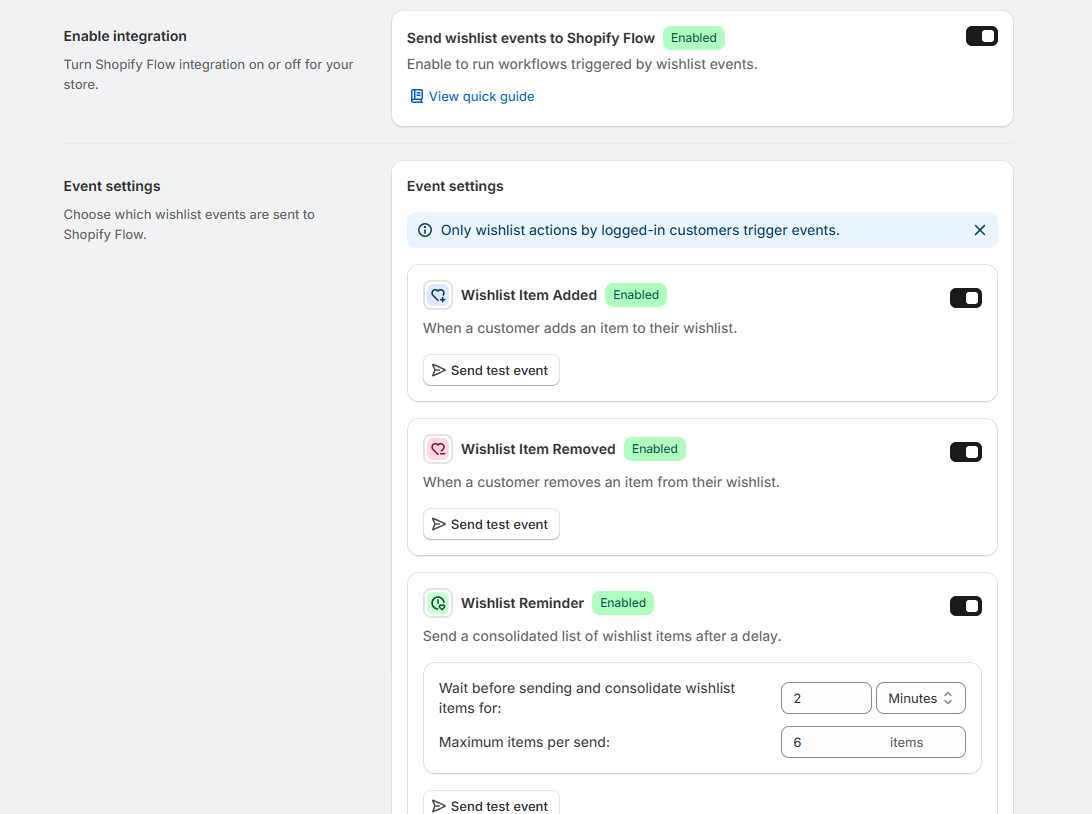
Shopify Flow can be enabled globally, while each wishlist trigger has its own switch and test action.
There is no connection section or API key. The Flow triggers are extensions supplied by the installed TValue app.
Configure event timing and thresholds
Three Flow triggers have additional settings in TValue:
| Trigger | Setting | Effect |
|---|---|---|
| Wishlist Reminder | Delay and maximum items per send | Waits after the first qualifying save, groups later saves during that period, and limits the products included in one trigger. |
| Wishlist Item Price Drop | Price-drop percentage | Sends the trigger only when the detected reduction meets or exceeds the selected percentage. |
| Wishlist Item Low Stock | Inventory quantity | Sends the trigger when stock reaches or falls below the selected quantity. |
The Reminder delay finishes before Shopify Flow receives the trigger. If the workflow adds a Wait step, that time begins afterward and extends the total delay.
For the reminder batching model, see How to Send Automated Wishlist Reminder Emails on Shopify. For price and inventory behavior, see How Shopify Wishlist Price Drop and Back-in-Stock Alerts Work.
Create a workflow
In Shopify Flow:
- Go to Apps > Flow.
- Click Create workflow.
- Select a trigger and choose TValue: Wishlist from the installed apps.
- Select one of the six wishlist triggers.
- Add a condition when the workflow should branch based on trigger data.
- Add the Shopify or app action that should run.
- Give the workflow a specific name.
- Test the logic before turning it on.
Flow displays the variables made available by the selected trigger. Product-based events include Shopify customer and product references, allowing conditions and actions to work with the associated Shopify resources. The custom event fields expose wishlist, price, and inventory details that are specific to TValue.
For a reminder containing several saved products, the Wishlist items payload is a list. Use Flow's looping tools only when an action genuinely needs to run once per item; customer-level actions should usually remain outside that loop.
Build useful conditions and actions
Use conditions to narrow the workflow instead of performing the same action for every event.
Examples:
| Trigger | Example condition | Example action |
|---|---|---|
| Wishlist Item Added | Product or variant matches a collection strategy | Add a customer tag or record the interest in another system. |
| Wishlist Reminder | Consolidated list contains qualifying products | Pass the reminder context to a compatible marketing action. |
| Wishlist Item Price Drop | New price or reduction fits a promotion rule | Notify a team or invoke a connected app action. |
| Wishlist Item Back In Stock | Restored product matches a monitored catalog area | Send an internal notification or update an external record. |
| Wishlist Item Low Stock | Current quantity is below a stricter operational threshold | Alert merchandising or add a row to a connected spreadsheet. |
The exact actions available depend on the store's Shopify plan and installed Flow-compatible apps. Keep the workflow name and notes clear enough that another staff member can understand why each wishlist trigger exists.
Test a TValue Flow trigger safely
Each event in TValue has a Send test event action. Use it together with Flow's event-recording test mode:
- Keep the workflow turned off while preparing the test.
- In the Flow editor, click Test your workflow and start Record events.
- In TValue, choose the trigger and click Send test event.
- Select a logged-in Shopify customer and the required product data.
- Review Event data preview, then send the event.
- Select the recorded event in Flow and inspect the path, conditions, and variable output.
TValue marks the payload with Is test: true. This is an actual app trigger sent to Shopify Flow. Recording it through Flow's test mode lets you evaluate the workflow without performing actions that change store data. An early Is test condition is also useful when the team expects to send more TValue test events after the workflow is active.
This differs from Flow's own workflow test mode. Shopify states that a Flow test evaluates the workflow path but stops before actions that would make changes. TValue's Send test event is intended to verify the real app-trigger delivery and payload. See Testing a workflow in Shopify Flow for the native test behavior.
A reliable test sequence is:
- Record the TValue test event and confirm the trigger data is available.
- Use Flow's test tools to inspect conditions and variable output without performing live changes.
- Confirm the
Is testbranch behaves as intended when one is present. - Turn on the production workflow only after the actions have been reviewed.
Understand the trigger data
All TValue triggers provide Is test. The remaining fields depend on the trigger:
- Wishlist item: one saved or removed product with variant, price, image, URL, and related details.
- Wishlist items: a list of products consolidated for Wishlist Reminder.
- Price drop items: product entries with old and new price values.
- Back in stock items: product entries with restored inventory information.
- Low stock items: product entries with previous inventory, current inventory, and the configured threshold.
- Customer reference: supplied for every trigger.
- Product reference: supplied for single-product and product-change triggers, but not the consolidated Wishlist Reminder trigger.
Prefer Shopify customer and product references when an action expects Shopify resources. Use TValue's custom fields when the workflow needs the wishlist-specific snapshot that caused the trigger.
Review delivery and workflow runs
Open Integrations > Shopify Flow > Event logs in TValue to inspect real and test trigger deliveries. Filter by event, status, or date range, then open a row to review its customer, product context, payload, and any failure details.
After the trigger reaches Flow, use Recent runs in Shopify Flow to inspect the workflow path, evaluated conditions, actions, and errors. Shopify documents available run filters in Finding and monitoring workflow runs.
Use the two histories for different questions:
- TValue Event logs: Did the app send the expected trigger and wishlist payload?
- Shopify Flow Recent runs: Which workflow received it, which branch ran, and what happened to each action?
If TValue reports a failed delivery, inspect the integration and trigger payload first. If TValue reports the trigger as sent but the expected task did not happen, inspect whether the workflow is active and whether its conditions or actions blocked the result.
Launch checklist
Before activating a workflow, confirm that:
- Shopify Flow is installed and the TValue integration is enabled.
- The required wishlist trigger is enabled in TValue.
- The workflow uses the intended TValue trigger.
- Customer and product references resolve to the expected Shopify records.
- Custom wishlist, price, and inventory fields are used correctly.
- Reminder and Flow Wait steps do not create an unintended combined delay.
- Test events are separated from production actions.
- The chosen actions are available on the store's plan and through installed apps.
- TValue Event logs and Shopify Flow Recent runs can both be checked after launch.
For the full trigger reference, see the TValue Shopify Flow documentation. For email-first automation platforms, continue with How to Send Shopify Wishlist Events to Klaviyo or How to Send Shopify Wishlist Events to Omnisend.