Wishlist product alerts notify Shopify shoppers when the reason they postponed a purchase changes. A price-drop alert responds to a lower price, a back-in-stock alert responds to restored availability, and a low-stock alert warns that a saved product is approaching a configured inventory threshold.
With TValue: Wishlist, these are separate automations. Each flow has its own trigger and email template, so the message can match the event instead of sending the same generic reminder for every situation.
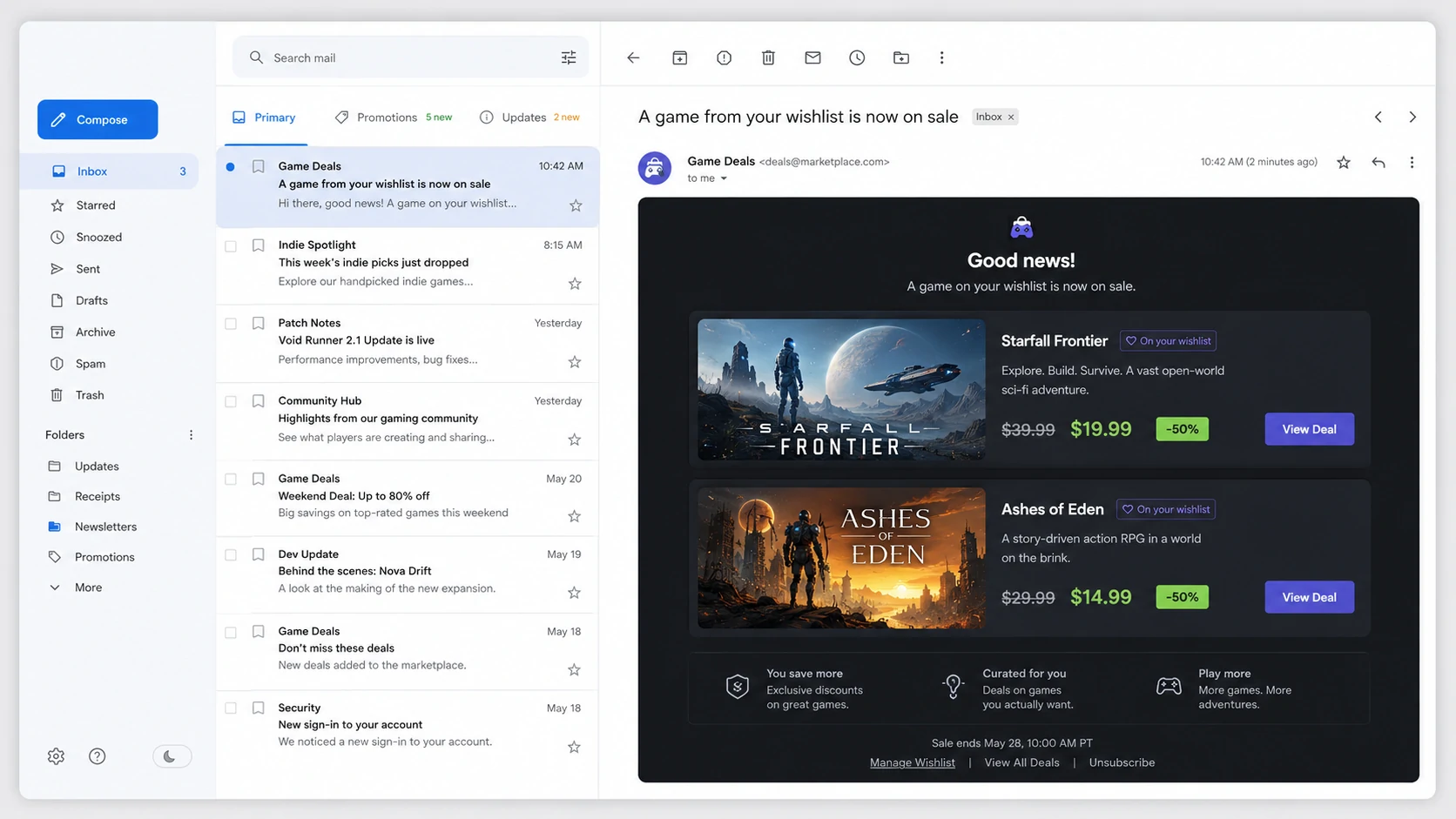
A product alert works because something relevant changed after the shopper saved the item.
Wishlist reminder vs product alert
A wishlist reminder and a product alert both bring shoppers back, but they answer different questions.
- Wishlist reminder: "Do you still want to revisit what you saved?"
- Price-drop alert: "Would the new price change your decision?"
- Back-in-stock alert: "Do you want to return now that the product is available?"
- Low-stock alert: "Do you want to act before the remaining inventory is gone?"
The reminder is time-based. Product alerts are event-based. Keeping these flows separate makes the subject line, product information, and call to action more credible.
Compare the three product alerts
| Automation | Trigger | Merchant setting | Best message focus |
|---|---|---|---|
| Price drop | A wishlisted product drops by at least the configured percentage | Minimum percentage drop | Previous price, current price, and return-to-product action |
| Back in stock | A wishlisted product becomes available again | No trigger threshold | Restored availability and direct product link |
| Low stock | Inventory reaches or falls below the configured quantity | Stock quantity threshold | Remaining availability and a clear, factual prompt to return |
Shopify tracks inventory at the product variant level when inventory tracking is enabled. Review inventory configuration before relying on inventory-based customer messages, especially when products have sizes, colors, multiple locations, or settings that allow sales beyond available stock. Shopify Help Center: Setting up product inventory
How price-drop alerts work
The price-drop automation evaluates detected price changes for products shoppers have saved. The email is eligible only when the percentage drop meets or exceeds the threshold configured in the automation.
For example:
| Previous price | New price | Price drop | 10% threshold result |
|---|---|---|---|
| $100 | $95 | 5% | Does not trigger |
| $100 | $90 | 10% | Meets the threshold |
| $100 | $75 | 25% | Meets the threshold |
A lower threshold responds to smaller changes and can produce more alert activity. A higher threshold limits the flow to more substantial reductions. The right setting depends on normal pricing behavior and how often the catalog changes.
Use the email template to show the old and new price clearly. The shopper should understand the change without decoding a generic sale message.
How back-in-stock alerts work
The back-in-stock automation watches for a saved product becoming available again. It does not use a configurable percentage or quantity threshold.
This alert is most relevant when the shopper already expressed interest but could not purchase because the desired product or variant was unavailable. The email should make three things clear:
- Which saved product is available again.
- That availability has changed.
- Where the shopper can return to review or buy it.
Avoid adding unsupported urgency such as "selling out now" unless the current inventory actually supports that statement. Back in stock means availability returned; it does not automatically mean stock is already low.
Where low-stock alerts fit
Low-stock alerts are a separate inventory flow. Instead of waiting for an unavailable product to return, they warn eligible shoppers when stock reaches or falls below the quantity you choose.
If the threshold is 10 units, the event can trigger at 10 units or lower. A smaller threshold moves the message closer to selling out; a larger threshold gives shoppers an earlier warning.
Use low-stock messaging carefully. It should reflect a real inventory threshold rather than manufacture urgency. Inventory tracking must also match how the store actually fulfills products. Shopify provides inventory management at the product and variant level, including available quantities and location-aware inventory states. Shopify Help Center: Managing inventory
Requirements for wishlist product alerts
Before an alert can become a useful email, the flow needs:
- A product or eligible variant already saved to a wishlist.
- A detected price or inventory event that matches the automation trigger.
- An enabled automation.
- A shopper with an eligible email address and notification preference.
- An active email template and sender configuration.
- A valid product destination for the return click.
This is why product alerts should be configured after the basic wishlist journey works. Start with How to Add a Wishlist to Shopify Without Editing Theme Code if the storefront has not been verified yet.
Set up a price-drop alert in TValue
1. Open the automation
Go to Emails > Automations > Price drop alert.
The flow has a Trigger node and a Send email node.
2. Set the percentage threshold
Open Trigger and set Send event when price drops by.
Choose a threshold from 1% to 100%. Use a value that represents a meaningful price movement for the catalog rather than copying a number from another store.
3. Configure the email
Open Send email and set the subject, preview text, sender details, and template. Make the saved product and changed price prominent.
4. Enable the flow
Save the settings and click Enable. Review actual sends under Email history.
For the complete setting reference, see Price drop alert.
Set up a back-in-stock alert in TValue
1. Open the automation
Go to Emails > Automations > Back in stock alert.
The trigger is fixed: a wishlisted product is back in stock. There is no threshold to choose.
2. Build an availability-focused email
Configure the subject, preview text, sender, and template in Send email. Include a direct route to the product so the shopper can verify the current variant and availability.
3. Enable and monitor
Click Enable, then use Email history to inspect sent, opened, clicked, skipped, or failed activity.
See Back in stock alert for the product documentation.
Coordinate alerts without repeating the same message
One shopper can be eligible for different events over time. Keep each email specific:
- A reminder should focus on saved interest.
- A price-drop email should focus on the new price.
- A back-in-stock email should focus on restored availability.
- A low-stock email should focus on the configured inventory condition.
Use distinct subjects and templates so the recipient can tell why the email arrived. Product alerts lose value when every automation looks like the same promotion with a different label.
You can also send these events through supported integrations. Follow the complete workflow guides for Klaviyo, Omnisend, or Shopify Flow when you want another platform to handle the downstream automation.
Product-alert launch checklist
Before enabling all alert flows, verify:
- Shopify price and inventory data reflect the storefront accurately.
- The price-drop threshold matches normal promotion behavior.
- Back-in-stock and low-stock templates use different messages.
- Saved variants link shoppers back to the correct product context.
- Email sender and unsubscribe behavior have been reviewed.
- Test events and real sends can be distinguished in reporting.
- Email history is checked after the first live product changes.
Product alerts work best when the event itself is useful. Send fewer, more specific messages tied to changes the shopper is likely to care about.